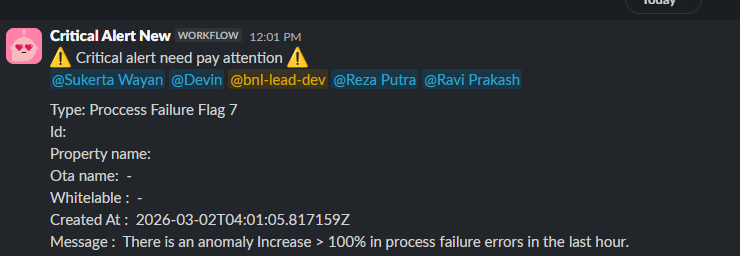
Runbook: Process Failure Flag 7 [ALERT]
| Service | OTA |
|---|---|
| Owner Team slack handle | @bnl-team-c, @bnl-channel-integration |
| Team's Slack Channel | #bnl-critical-alerts |
Table of Contents
Important Links
1. triage
The purpose of this process is to determine whether a synchronization failure is caused by an issue on the OTA side, and to inform the internal team and customers if necessary.
In most cases, flag 7 in the process_failure table indicates that our system failed to push data to the OTA, which is commonly caused by an issue on the OTA side.
To investigate this, we need to check the failed process records and review the detailed logs returned by the OTA.
Steps:
A. Check the database for failed processes.
The first step is to check whether there are failed synchronization processes recorded in the database.
Run the following query:
  SELECT identity, property_id, ota_id, ota_name, message, flag, created_at
  FROM process_failure
  WHERE flag = 7
  AND created_at >= DATE(NOW())
  ORDER BY created_at DESC
  LIMIT 300;
From the query results, you can identify:
- The OTA experiencing the issue
- The affected property
- The error message returned during the process
Note:
identity represents the flat file name, which will be used to retrieve the detailed synchronization log.
If any records with flag 7 are found in the process_failure table, check the detailed error in Step B.
B. Check the detailed OTA log To understand the issue in more detail, check the synchronization log using the following endpoint:
From this log, you can review:
- The request payload sent to the OTA
- The response returned by the OTA
- The detailed error message from the OTA
This step helps confirm whether the failure is caused by an issue on the OTA side.
C. Inform the Slack channel.
After identifying the issue, inform the Slack channel so the relevant teams are aware of the situation.
Please tag the following members:
- pak Sukerta
- PM
- pak Reza
- Technical Support Team
- bnl lead
Use the following message template:
🚨 **OTA Issue Notification**

Hi @Sukerta Wayan @Devin @bnl-lead-dev @Reza Putra @Ravi Prakash @bnl-support-technical,

We detected an issue with the following OTA:

**OTA:** [OTA Name]
**Property ID:** [Property ID / Property Name]
**Issue:** [Short description of the issue]

**Current Status:**

- Monitoring


**Action Taken:**

- Checked process failures with flag 7

- Identified the affected OTA and property

- Checked the issue using more detailed logs


I will monitor this issue for the next 30 minutes.
If the issue continues, please ask @bnl-support-technical to send an email to the OTA regarding this issue.
D. Monitor the system for the next 30 minutes.
After sending the notification, monitor the system for the next 30 minutes.
Steps:
- Check the
process_failuretable again to confirm whether the issue is still occurring. - Verify that the synchronization process with the OTA is running normally.
You can also monitor the sync process through Ota Update Log:
- Monitor whether any Full Sync or ARI Update processes are running for the related OTA: ota_update_log

If a synchronization process is running, verify that the data has been successfully pushed to the OTA.
⚠️ Important:
Do not perform a manual Full Sync without approval from pak Sukerta or the Support Team.
E. Escalate the issue if it continues.
If the issue still occurs after 30 minutes of monitoring, escalate the issue to the Technical Support Team.
The support team should:
- Contact the OTA and report the issue.
- Inform the customer that the synchronization issue is occurring on the OTA side.
This ensures the customer understands that the failure is caused by the OTA system, not by our system.
Glossary:
| Term | Meaning |
|---|---|
| Flag 7 | OTA rejected data push |
| Identity | Flat file name used to track OTA sync log |
| Full Sync | Push all property data to OTA |
| ARI Update | Update Availability/Rate/Inventory for property |
2. Decision Point
After completing the Triage process, determine whether this issue is a false alarm or a true incident.
IF all checks are normal
- No errors were found in the
process_failuretable with flag 7. - Sync requests are successfully pushed to the OTA
- No errors appear in the OTA logs ➡️ Go to: False Alarm
IF the issue is still occurring
- New records with flag 7 continue to appear in
process_failure - Multiple properties fail to sync to the same OTA
- OTA logs still show errors
- ARI / Full Sync requests are failing ➡️ Go to: True Incident
3. False Alarm
If the issue is no longer occurring, it means the alert was temporary or self-recovered.
3.1 Verify System Stability
Confirm the system is operating normally.
Steps:
- Run the query again:
SELECT identity, property_id, ota_id, ota_name, message, flag, created_at
FROM process_failure
WHERE flag = 7
AND created_at >= DATE(NOW())
ORDER BY created_at DESC
LIMIT 300;
- Confirm that no records appear in the result..
- Randomly check several properties:
- Confirm OTA logs show successful push
3.2 Inform the Team
Post a Slack update confirming that no issues were found.
Slack message template:
✅ OTA Sync Update

Hi @Sukerta Wayan @Devin @bnl-lead-dev @Reza Putra @Ravi Prakash @bnl-support-technical

Update regarding the earlier OTA issue:

OTA: [OTA Name]

Current Status:
The issue is no longer occurring.

Verification:
- No  flag 7 errors detected in process_failure
- OTA sync confirmed working on several properties
4. True Incident
If an error is found in the process_failure table with flag 7, and the issue persists, it is considered a true incident.
The goal is to:
- Identify the root cause
- Inform the related OTA that there is an issue on their system.
- Create and sends announcement to all propperties connected in Dashboard, emaill and whatsapp group
- Full Sync once OTA issue recovers
4.1 Recover the System
Potential Cause 1 — OTA API Issue
The OTA API may be temporarily unavailable or returning errors when processing synchronization requests.
This is the most common cause of flag 7 errors.
Diagnostic Steps
- Check failed process records in the database:
SELECT identity, property_id, ota_id, ota_name, message, flag, created_at
 FROM process_failure
 WHERE flag = 7
 AND created_at >= DATE(NOW())
 ORDER BY created_at DESC
LIMIT 300; - Open the OTA log for a failed process:
After obtaining the failed process records from the
process_failuretable, check the detailed error information using the following API log: https://ota.bookandlink.com/common_files/readS3File.php?filename={{YYYY-MM-DD}}/ota_sync_log/{{ota_id}}/{{property_id}}/{{flatfile_name}} - Verify if the same error occurs across several properties.
Remediation Plan
Since this is an OTA-side issue, no internal system configuration changes are required. Steps:
- Inform the Technical Support Team about the OTA issue.
- Provide the following details:
- OTA name
- Example affected property ID
- Timestamp of the failure
- Error message from OTA logs
- Monitor the synchronization for 30 minutes.
If errors persist after 30 minutes, request the Technical Support Team to send an email to the OTA provider, explaining that the issue occurred on their system.
Verification
The incident is resolved when:
- No new flag 7 records appear in
process_failure. - OTA logs show successful responses.
- Properties successfully complete Full Sync or ARI updates.
4.2. Clean up
Once the issue is resolved:
- Request affected properties (hotels) to perform Full Sync from their side via email, explaining that the issue originated from the OTA system.
- Verify that the OTA synchronization requests are completing successfully by reviewing the OTA update logs.
- Monitor the
process_failuretable for at least 30 minutes to ensure no new errors appear.