Runbook: [Repush PMS Reservation After DB/OTA/CM Down]
| Service | [Channel Manager / tripla Link v1] |
|---|---|
| Owner Team slack handle | [@bnl-team-a and @bnl-team-c] |
| Team's Slack Channel | #bnl-teams-a dan #bnl-teams-c |
Table of Contents
Important Links
This section links to the most relevant resources for an engineer responding to this alert.
| Description | Link / Detail |
|---|---|
| Slack Notif Server | #bnl-notif-server |
| Aurora Performance Insighent | AWS Aurora |
| BNL Uptime Kuma | Uptime Kuma Channel Manager |
1. Triage
Goal: Ensure that reservations received by the OTA are successfully sent to the PMS when there is a downtime in the Database / OTA service / Channel Manager
Step - Notification Validation
There are several validations that can be performed before repushing PMS reservations. Repushing reservations can only be done if the Channel Manager / Tripla Link is back UP and the database condition is normal.
1.1 Here is how to check the status of the Channel Manager:
- Log in to BNL Uptime Kuma
- Select PROD - Channel Manager from the Monitor List
- Check whether the status is Up or Down
If it is Up, it will display a status like the following example:
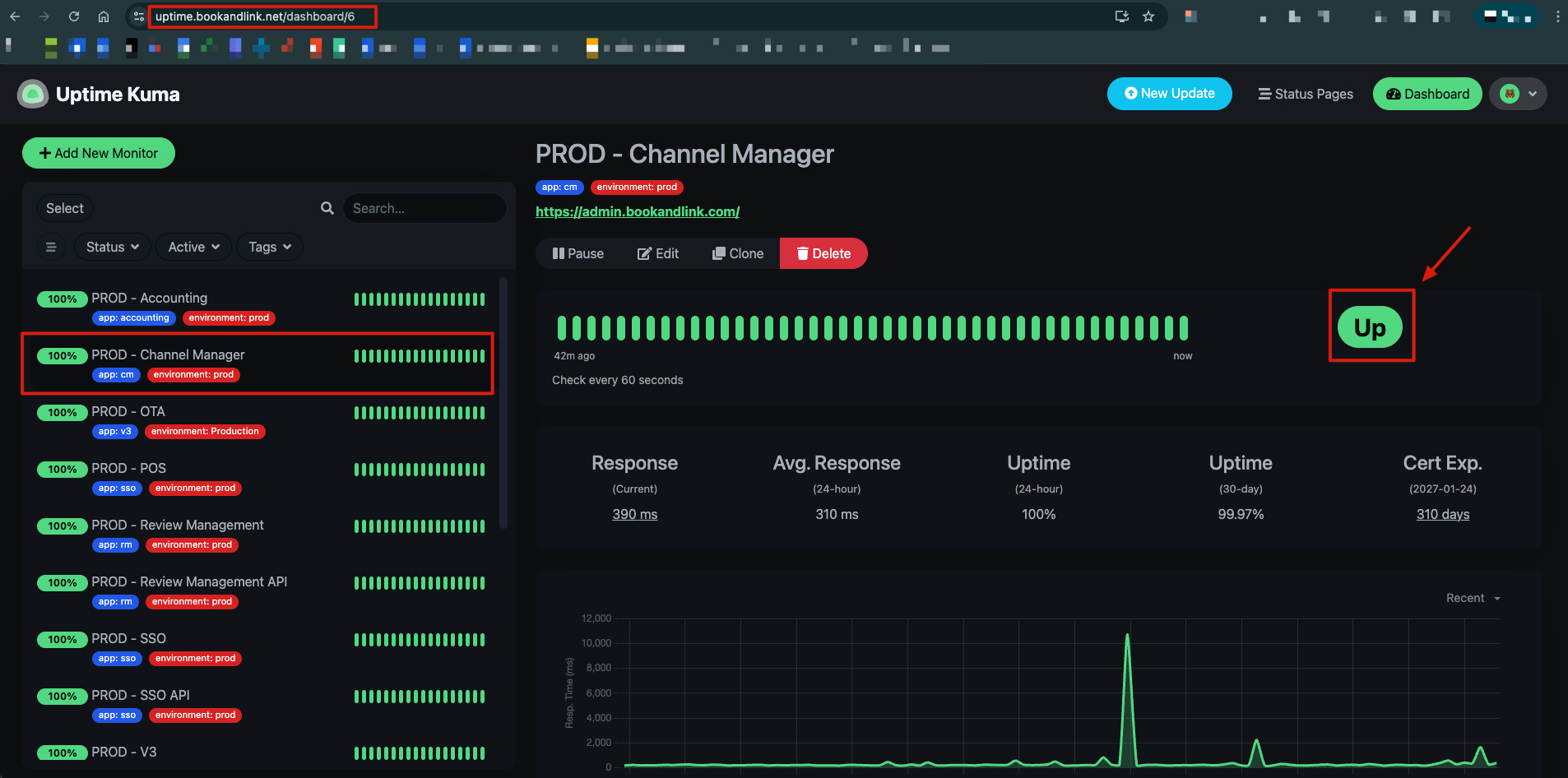
Additionally, you can also check the up status by directly accessing admin.bookandlink.com. If you can log in and access the admin page, then the Channel Manager is already Up.
1.2 Here is how to check the load status of the Database:
Under normal conditions, the database load wait will be below 1.
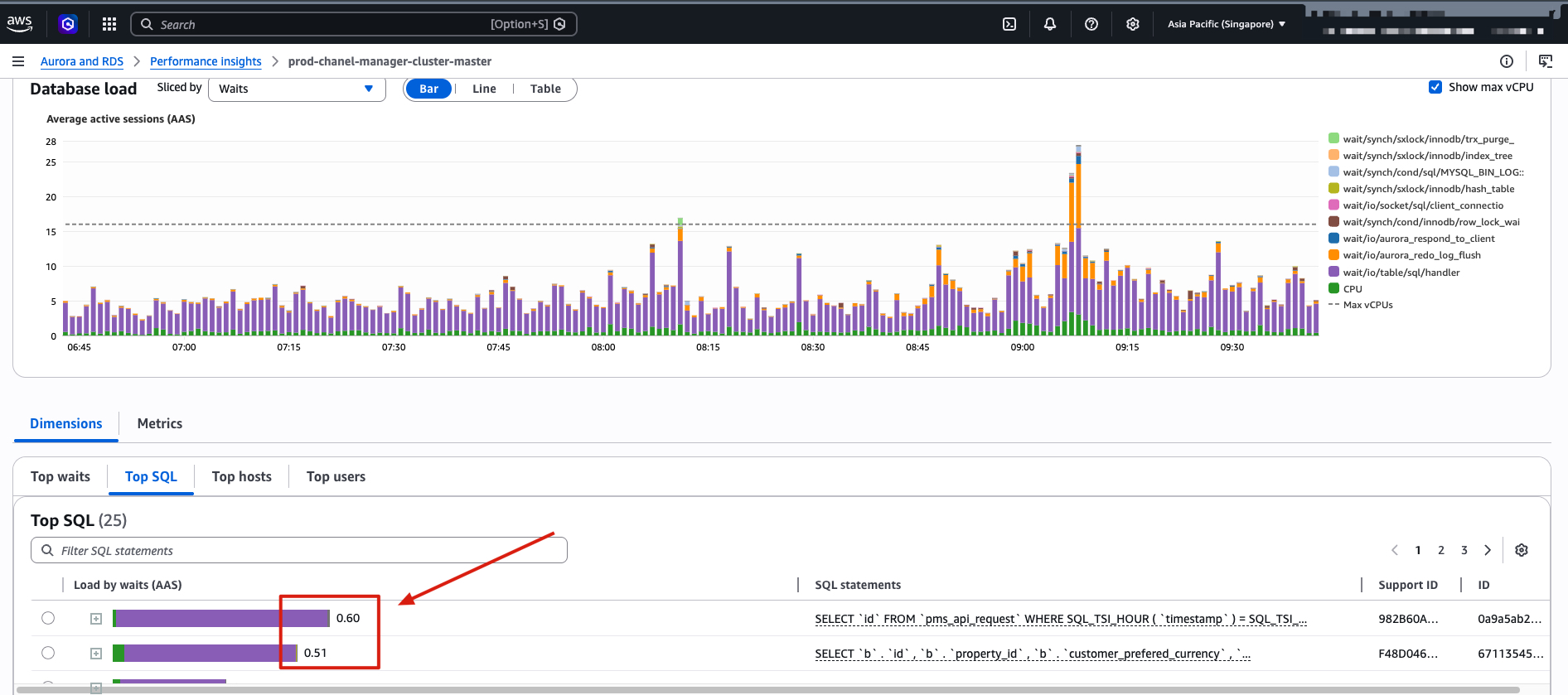
In the example above, the highest db load wait is at 0.6. If it is like this, it means the db load is already normal.
2. Decision Point
-
IF the status is normal at points 1.1 and 1.2 :
- ➡️ Proceed to: [[#4. True Incident]]
-
IF the status is not normal at points 1.1 and 1.2:
- ➡️ Proceed to: [[#3. False Alarm]]
3. False Alarm
If:
- Channel Manager status is Up but db load wait is still high
Then it is likely caused by:
- There are still sync processes (OTA / PMS) running after DB Down
Actions:
- No action is needed if this false alarm occurs
- Wait until DB load returns to normal
- Monitor DB load until it returns to normal
4. True Incident
If the channel manager and DB load are normal and UP, then you can proceed with the process of repushing PMS reservations. Here are the steps:
4.1. Recover the System
For PMS itself, there are 2 types of PMS, namely: XML and API. Here is how to check and repush. Because the logs for both are stored in different databases:
4.1.1. PMS XML
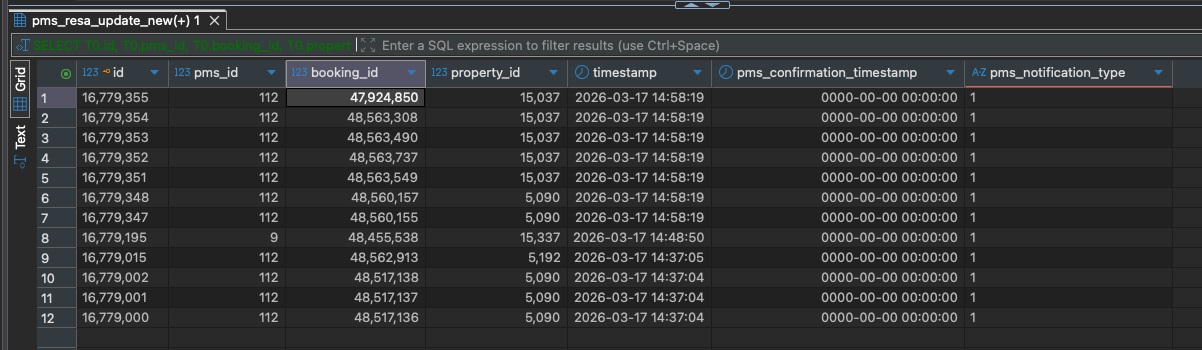
For PMS XML, logs are stored in the prod-channel-manager-db database. Here is how to check and repush:
1. Run a query on the prod-channel-manager-db database to get the number of data that needs to be repushed
The query is:
SELECT
	T0.id,
	T0.pms_id,
	T0.booking_id,
	T0.property_id,
	T0.`timestamp`,
	T0.pms_confirmation_timestamp,
	T1.pms_notification_type
FROM
	pms_resa_update_new T0
	LEFT JOIN external_site_user T1 ON T0.pms_id = T1.ota_id AND T0.property_id = T1.property_id
WHERE
	(`timestamp` >= '2026-03-17 14:25:00' AND `timestamp` <= '2026-03-17 15:12:00')
	AND pms_confirmation_timestamp = '0000-00-00 00:00:00'
	AND pms_notification_type = 1
GROUP BY
	T0.id
ORDER BY
	id DESC;
2. Result for reservations that need to be repushed
3. Repush PMS XML
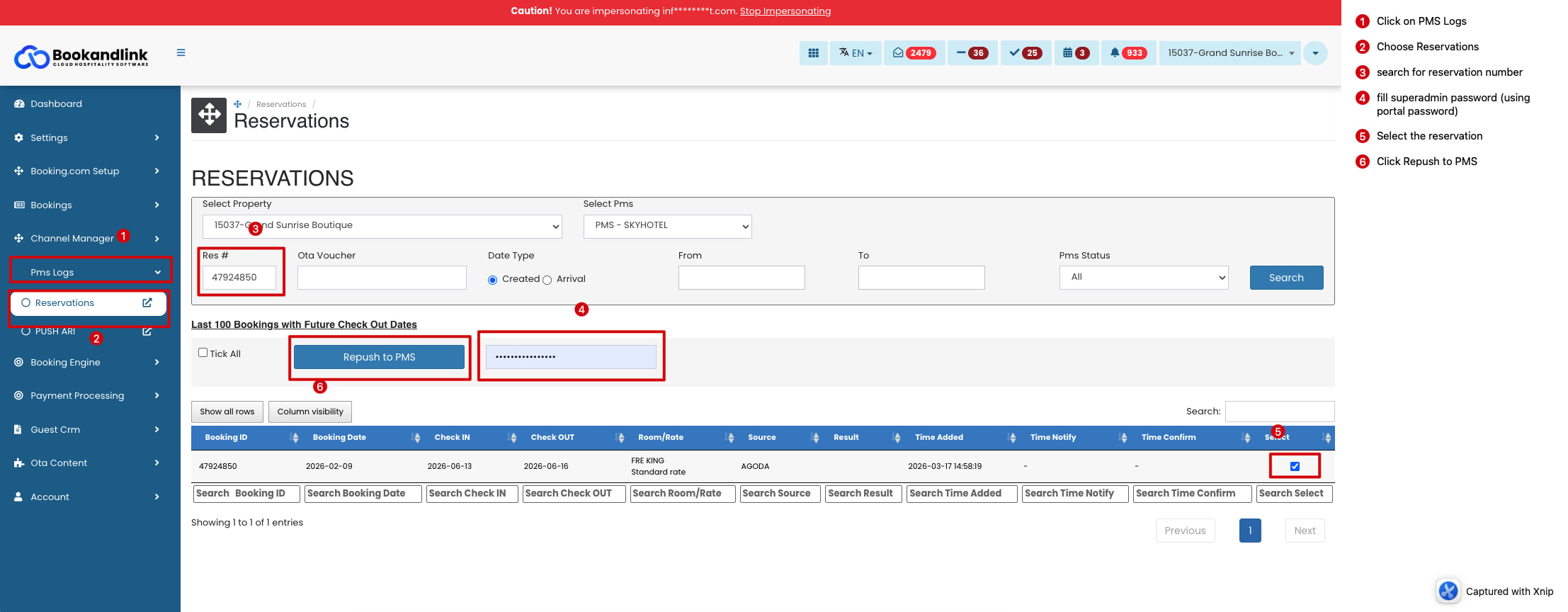
To repush PMS XML, you can do the following:
- Impersonate the property known to have the issue.
- Go to the PMS Log menu
- Select the Reservations sub-menu
- Search for the reservation ID in the Res # column
- Enter the superadmin password / portal password in the password field
- Tick or check the reservations you want to repush
- Click the Repush button
4.1.2. PMS API
For PMS API, the repush method is the same as PMS XML, only the query is different. Here is the query for PMS API:
1. Run a query on the prod-channel-manager-db database to get the number of data that needs to be repushed
SELECT
	T0.id,
	T0.pms_id,
	T0.booking_id,
	T0.property_id,
	T0.`timestamp`,
	T0.pms_confirmation_timestamp,
	T1.pms_notification_type
FROM
	pms_api_reservation T0
	LEFT JOIN external_site_user T1 ON T0.pms_id = T1.ota_id AND T0.property_id = T1.property_id
WHERE
	(`timestamp` >= '2026-03-17 14:25:00' AND `timestamp` <= '2026-03-17 15:12:00')
	AND pms_confirmation_timestamp = '0000-00-00 00:00:00'
	AND pms_notification_type = 1
GROUP BY
	T0.id
ORDER BY
	id DESC;
2. Result for reservations that need to be repushed
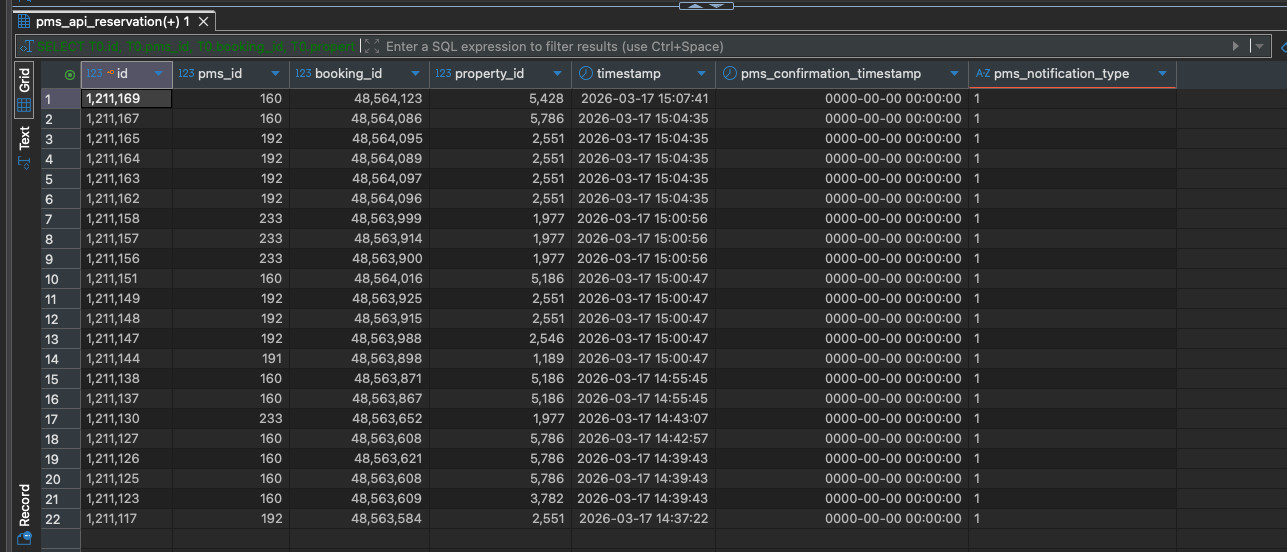
3. Repush PMS API
To repush PMS API, you can do the following:
- Impersonate the property known to have the issue.
- Go to the PMS Log menu
- Select the Reservations sub-menu
- Search for the reservation ID in the Res # column
- Enter the superadmin password / portal password in the password field
- Tick or check the reservations you want to repush
- Click the Repush button
4.1. Clean up
After the repush process is complete, wait about 5-10 minutes for the repush process. Here is an example if the repush process has finished.
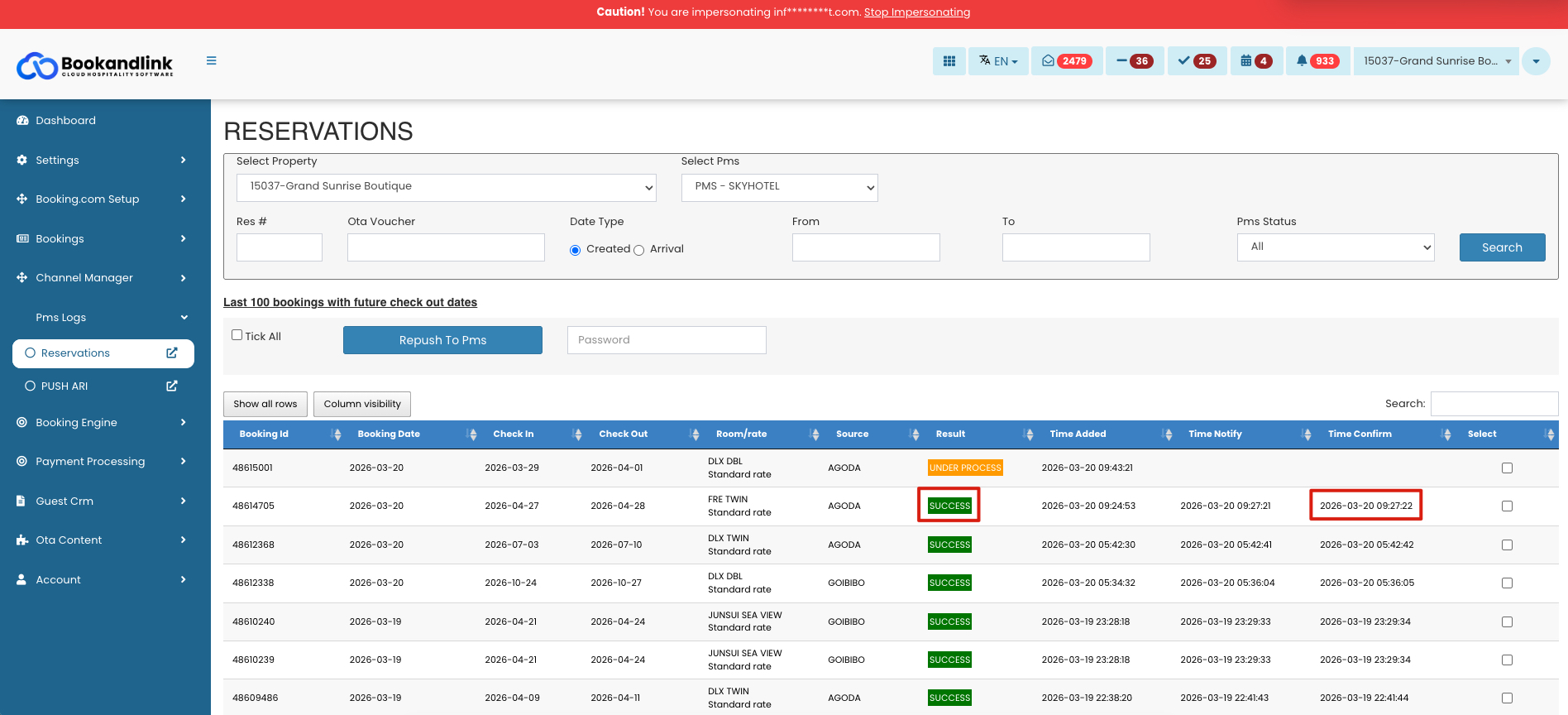
The result column will display success and the Time Confirm is not empty.