Runbook: Troubleshooting fluidpay CC charge error
| Service | [Hotelku / Stay v1] |
|---|---|
| Owner Team slack handle | [@bnl-team-a] |
| Team's Slack Channel | [#bnl-teams-a - https://tripla-team.slack.com/archives/C08DWH5N4CR] |
Table of contents
Important Links
| Page | URL |
|---|---|
| Fluidpay CC test | https://sandbox.fluidpay.com/docs/test_data/ |
1.Triage
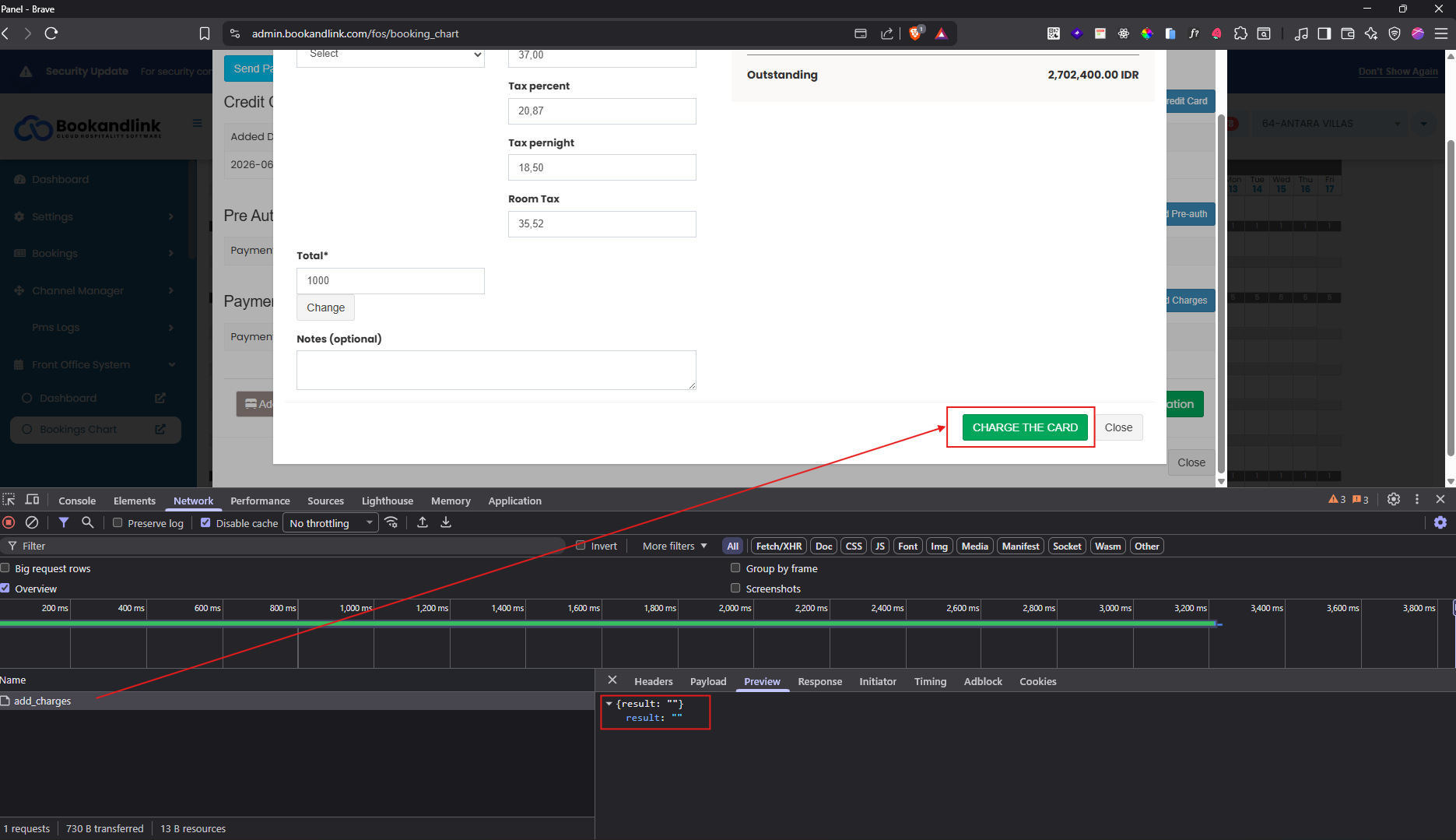 When a charge credit card via fluidpay fails, the response received from OTA endpoint is blank, This lack of error messaging make it difficult for both developer and support teams to investigase the root of cause of the failure.
The purpose of this runbook is to guide the team through investigating the ota endpoint by analyzing the availabile logs, enabling them to identify and resovle underlying issue.
1.2 Prerequisites & Configuration
Before starting the investigation, please ensure the following configurations are met:
-
Production Testing Limitation: When testing or investigating Fluidpay in the production environment, you must use Property ID
64only. -
Payment Processing Setting: Navigate to Property Payments > Payment Processing > Setting page. Please verify the following configurations:
- Payment Processing: Select
Host Merchant Services. - Input Merchant Key: Enter the Fluidpay public key (this can be found in your Fluidpay dashboard).
- Surcharge: Optional.
- Surcharge Type: Optional.
- Payment Processing: Select
-
Database Version Verification: Execute the following query in the production database to ensure the
payku_versionis set to1:SELECT bookandlink_transfer, payku_version
FROM Payment_options
WHERE property_id = 64
1.3. Reproduce feature
⚠️ Before continuing, please ensure you have completed every step in 1.2 Prerequisites & Configuration.
- Navigate to the Booking Chart Page.
- Click on any existing reservation in the calendar to open the reservation details.
- Click the "Edit Reservation" button.
- Once the reservation form is displayed, switch to the "Credit Cards" tab.
- If the reservation does not have a credit card attached, follow these sub-steps to add one:
- Click "Add Credit Card".
- A popup window will appear. Fill in the fields with the following test values:
- Name On Card: You can enter any name (e.g., "Test Card").
- Card Number: Use a test credit card number from the Fluidpay Test Data Documentation.
- Expiration Month: Select any available month from the dropdown.
- Expiration Year: Select the current year (2026) or any future year.
- CVV: Enter
123.
- Click Add Credit Card to submit
- Click Add charges if already have credit cards
- Fill all inputs, if want auto calculation select Payment Policy and after selected the input filled based on calculation
- Click Charge the card to submit, and show message Credit Card Successfully Charged for sucess charges.
2.Investigation
2.1. Check Response in Slack Channel
You can verify the OTA endpoint response through the Slack debug logs in the #bnl-debug channel. Follow these steps:
- Open the
#bnl-debugchannel in Slack. - Search using the following keyword format (replace
[booking_id]with your actual booking ID):
Received response from Fluidpay transfer for booking ID [booking_id]
Here the following quick troubleshooting response:
| Response | Condition & Description | Next Action |
|---|---|---|
| Success | The endpoint successfully processed the credit card charge. | False Alarm (No system issue, transaction succeeded). |
| Empty | The OTA endpoint returned nothing due to an internal processing error. | Go to 2.2 Log Investigation for deeper log investigation. |
HTML String (Service Temporarily Unavailable) | The system is currently down or undergoing severe maintenance. | True Incident. Immediately contact the Team Lead and On-Call Engineers. |
2.2. Log Investigation
ℹ️ IMPORTANT NOTICE
Access to the production S3 bucket is restricted. Please immediately contact your Team Lead to retrieve the cc_logs file, as only the Lead Team has the necessary permissions to access this production storage.
Below is an example of the structured JSON cc logs process:
📄 Reference file: CC Log Example.json
Once you have coordinated with the Team Lead, follow these sub-steps to analyze the log file:
- Locate the Log File: Ensure the Lead retrieves the correct log file corresponding to the timestamp of the failed transaction.
- Analyze the log output: Open the
logfile and inspect the JSON structure the lifecycle of the Fluidpay request. - Identify Specific error patterns: If you find the following error structure inside the log payload:
"Logs": [
   {
    "Log": "{\"status\":\"failed\",\"msg\":\"bad request error: amount must be greater than tax\"}\n",
    "TimeStamp": "2026-05-11T11:15:29+07:00"
   }
]
Here the following quick troubleshooting fluidpay:
| Error message | Condition & Description | Next Action |
|---|---|---|
| bad request error: amount must be greater than tax | Fluidpay rejected the request because the tax value is equal to or higher than the total charge amount. | Verify the payment form values. Ensure that the Tax Breakdown input is strictly smaller than the Total Amount. |
| general error: error during customer lookup | The Fluidpay system failed to locate the Customer ID associated with the selected credit card. | Verify the configuration in Payment Processing > Setting matches 1.2 Prerequisites & Configuration. If the setup is already correct, re-add the credit card to the failed reservation and try charging again. |
- Missing / Incomplete Log trails (Internal ota endpoint error): If the reservation logs do not contains any explicit error messages, but the log steps are incomplete or truncated compared to the normal example, it indicates that the issue did not occur on Fluidpay's side. Instead, the failure happened internally within our OTA system before communicating with the gateway, or immediately after a successful gateway response.
- Network Execution Timeout: The internal server running the OTA service reached its maximum execution time limit and dropped the connection before completing the transaction lifecycle.
- S3 Storage & Database Log Failures: The system successfully processed the payment, but encountered a fatal error when attempting to upload the
cc_logsfile to the S3 storage bucket. Because this logging process crashed, the transaction trail failed to be stored in the database, resulting in a blank response.
3. True Incident Action Plan
3.1 Handling multiple charge
If your log investigation from 2.1. Check Response in Slack Channel confirms that the transaction was actually successful and funds were deducted on Fluidpay's side, but the OTA form failed to return a "Success" message, this must be treated as a True Incident.
This missing response often confuses users, leading them to click the "Charge" button multiple times, which results in duplicate charges.
Recovery Steps:
- Escalate to Lead/Support: Immediately inform the Team Lead or Support Team with the investigation results and the affected Booking ID.
- Identify Duplicate Charges: Navigate to the Edit Reservation page for the affected booking and review the Payments table to check the detailed list of transaction records.
- Execute Refund Action: Depending on the system access and policy, follow one of these procedures to resolve the duplicate charge:
- Internal Refund via System: If the Team Lead or Support Team has active access permissions, they can execute the refund directly from the Payments table inside the Edit Reservation page.
- Direct Client Escalation: If direct system refund is unavailable, the Support Team must immediately contact and report the issue to the hotel client (merchant) so they can process the refund from their end.
- Data Reconciliation: Ensure that only one valid charge is maintained. The internal system status must be manually verified or updated so the reservation reflects the correct payment status, preventing further payment attempts by the user.
4. Post Recovery Verification
Before closing the incident / investigation ticket, Please verify the following:
- Slack Response Verification: Check the reservation response charge Fluidpay OTA endpoint log in the Slack channel and ensure the final response is
"success". - Payment Table Validation: Navigate to the Edit Reservation page and check the Payments table. Ensure the
"Added by"column is not empty. If this value is empty, it indicates the OTA endpoint returned a blank response, meaning the Channel Manager (CM) side failed to process the update and send the "add charge" email.